Anime Ragdoll Controls Guide
PC, mobile, and console inputs for movement, combat, camera, and chat — plus where to verify live bindings.
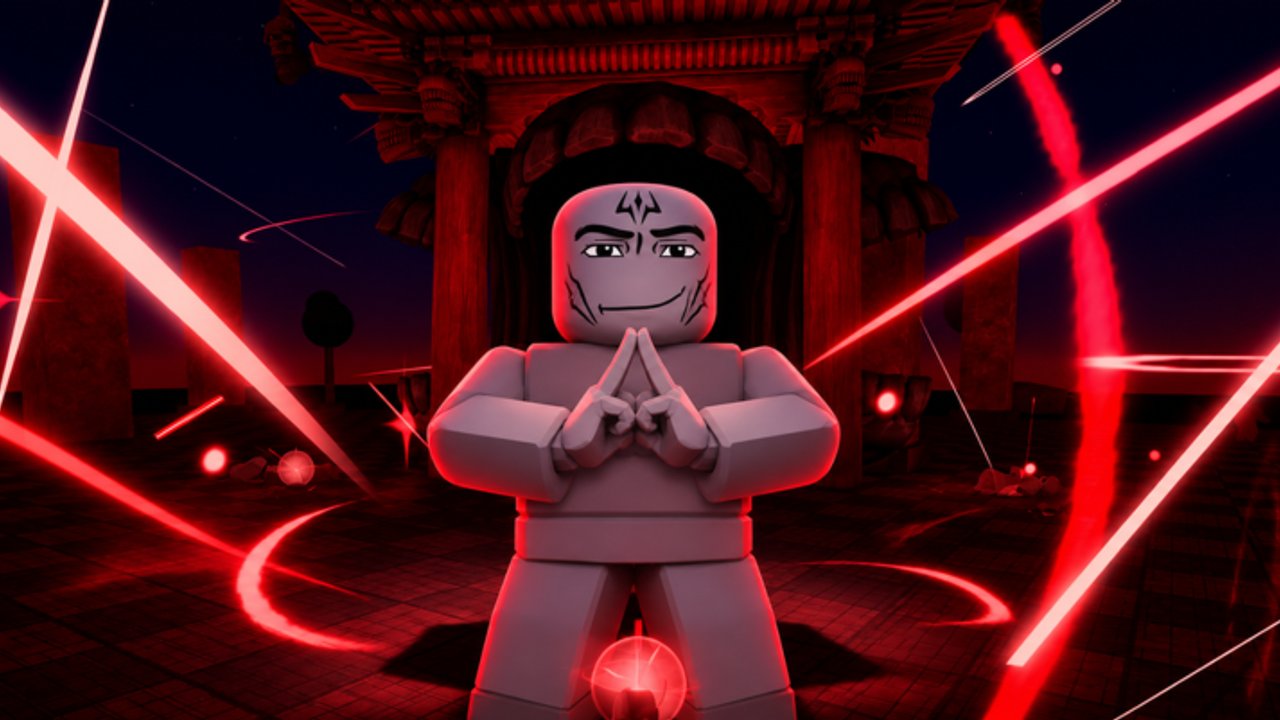
Anime Ragdoll Engine plays like an anime battleground wrapped around a ragdoll sandbox. You sprint, camera-lock, fire skills, fling bodies, and shatter props — often in the same ten seconds. Because Default Cubes still labels the experience Early Phase, treat every binding in this guide as the expected layout, not a forever contract. Always open in-game Help or settings after a patch and confirm what your device actually shows.
This page pairs with Getting Started for onboarding and Sandbox and Skills for Slow Motion, Time Stop trials, and practice modes. For currency and shop UI, see How to Earn Ryo. Live codes still redeem through chat, so knowing how to open chat on your device matters as much as knowing your heavy attack.
Shared control goals
No matter the platform, you need five reliable actions:
- Move and jump through Training Grounds and crowded lobbies
- Rotate or lock the camera so skill telegraphs stay readable
- Basic attack and skill casts for combo practice
- Interact / menu for shop, character select, dailies, and sandbox modifiers
- Chat for codes such as
!1000LikesTYSMwhen active — verify on Codes
If any of those five feels missing after an update, stop fighting and rebind or re-read Help first. Console support continues to mature; mobile touch layouts can shift when UI scales change.
PC (keyboard and mouse)
PC players usually get the most precise camera for landing flings and filming Slow Motion clips.
Movement and camera
- WASD — walk and strafe
- Space — jump; chain with sprint for gap closes
- Shift (or the sprint bind shown in settings) — run between dummy packs
- Mouse — look / aim; scroll or bound keys zoom if the build exposes zoom
- Right mouse (when offered) — camera lock or focus during skill windups
Combat and skills
- Left mouse — basic melee or primary fire
- Number keys (1–4 or similar) — character skills; anime kits often map specials to hotbar slots
- E / Q / F / R — common interaction or ability slots in Roblox battlegrounds; confirm labels in Help
- Ctrl or V (when present) — crouch, block, or alternate stance if your character kit exposes one
Menus and chat
- Esc or on-screen buttons — pause, settings, leave
- / or the chat bar click — open chat to redeem codes
- Inventory / shop icons — spend Ryo; economy detail lives in the Ryo guide
Practice a full loop: walk to a dummy, basic attack, skill, activate free Slow Motion, then reset. PC is ideal for learning knockback angles before you take the same kit to mobile or console.
Mobile (touch)
Mobile layouts put a virtual joystick on the left and action buttons on the right. Exact icon art changes during Early Phase, but the logic stays familiar.
Movement
- Left thumb stick — move
- Jump button — usually near the right cluster
- Sprint toggle — hold or tap depending on the current UI
Combat
- Large attack button — basic hits
- Skill buttons — mapped around the attack cluster; larger hitboxes help mid-combo
- Extra interact button — pickups, doors, or mode toggles when the sandbox exposes them
Camera and UX tips
- Drag the open screen area to rotate the camera
- Reduce graphics or effects if Slow Motion plus destruction tanks your frame rate
- Lock orientation if your device flips while you mash skills
- Open chat from the Roblox chat affordance to paste or type codes carefully — mobile autocorrect can break
!1000LikesTYSM
Mobile flings feel wilder because thumb cameras drift. Spend extra time in Training Grounds before ranked-feeling lobby brawls.
Console (gamepad)
Console support is real and still receiving polish. Expect a standard Roblox-style pad map with experience-specific skill slots.
Likely defaults (verify in-game)
- Left stick — move
- Right stick — camera
- A / Cross — jump
- R2 / RT — basic attack
- X / Square, Y / Triangle, B / Circle (or bumpers) — skills and interacts
- Menu / View — settings, character, shop
- D-pad — hotbar or emote radial when exposed
Chat on console is slower. Use a keyboard attachment if you redeem codes often, or type carefully with the on-screen keyboard. After Shadow Monarch and Training Grounds V2 patches, re-check whether any skill slot moved — Updates will call out major input changes when they ship.
Combat rhythm that fits the controls
Anime Ragdoll Engine rewards readable strings more than button mashing:
- Close distance with sprint and jump
- Land basics to confirm range
- Fire a skill when the dummy or NPC is committed
- Tap Slow Motion (free for all after 7 Nov 2026) to adjust the finisher
- Watch ragdoll trajectory so the next hit connects instead of whiffing air
Destructible props add a second layer. A broken crate can become a projectile or block a camera. Learn when to clear scenery in Sandbox and Skills instead of demolishing a friend’s line of sight for no reason.
Chat, codes, and social binds
Codes are a progression tool, not a side Easter egg. On every device:
- Open chat
- Enter the string exactly
- Watch for a success toast or Ryo grant
- Confirm the live list on Codes
If chat is restricted by account settings, fix Roblox privacy first — the game cannot redeem codes you cannot type.
Early Phase honesty checklist
- Bindings can change without a long patch essay
- Console glyphs may lag behind PC labels
- Mobile button positions can shift when new VIP or trial toggles appear
- Help / settings inside the place beats any wiki screenshot
- After big drops (Shadow Monarch window, Training Grounds V2), re-verify skill hotkeys before blaming your kit
Practice plan for controls mastery
Day one: ten minutes of pure movement and camera in an empty corner. Day two: basic plus one skill on dummies with Slow Motion. Day three: add environment breaks and a second skill. Then compare character kits on Players and the tier list once your fingers — or thumbs — stop fighting the UI.
If you explore community tooling later, read Scripts for safety notes; never bind macros that violate Roblox rules. Return to Getting Started if you still need lobby orientation, or jump to the Guides Hub for the full tutorial set.
Clean inputs make ragdoll finishers look intentional. Learn your device once, confirm Help after every major update, and the rest of Anime Ragdoll Engine becomes timing and style.
Frequently Asked Questions
Quick answers to the most common questions.
Where do I see the official keybinds?
Open Help or settings inside Anime Ragdoll Engine. This guide lists expected battleground-style binds, but Early Phase patches can move them.
How do I redeem codes on mobile or console?
Open Roblox chat on your device and type the code exactly. Watch for autocorrect on mobile and use a keyboard on console if possible.
Is Slow Motion a special key?
Slow Motion is a free gameplay modifier after the November 7 2026 update. Its toggle appears in sandbox or HUD controls — confirm the live label in settings.
Why do my skills feel different after an update?
Hotkeys and kit timing can change in Early Phase. Re-check Help, then skim Updates for patch notes before relearning combos.
What should I practice first?
Movement and camera, then basic attacks, then one skill with Slow Motion in Training Grounds. Add destruction practice after your aim stabilizes.